
At WebWize, we believe that managing your busy life shouldn’t feel like a jigsaw puzzle, especially when it comes to keeping your schedules in sync. We totally get how frustrating it can be to juggle different calendars, and that’s why we’re on a mission to help you tackle these tech challenges with ease. Think of us as your friendly guides, ready to help you navigate through those clever hacks to connect your Google and Outlook calendars, so you can spend less time stressing and more time enjoying what really matters. Let’s dive into these solutions together and make your planning a breeze!
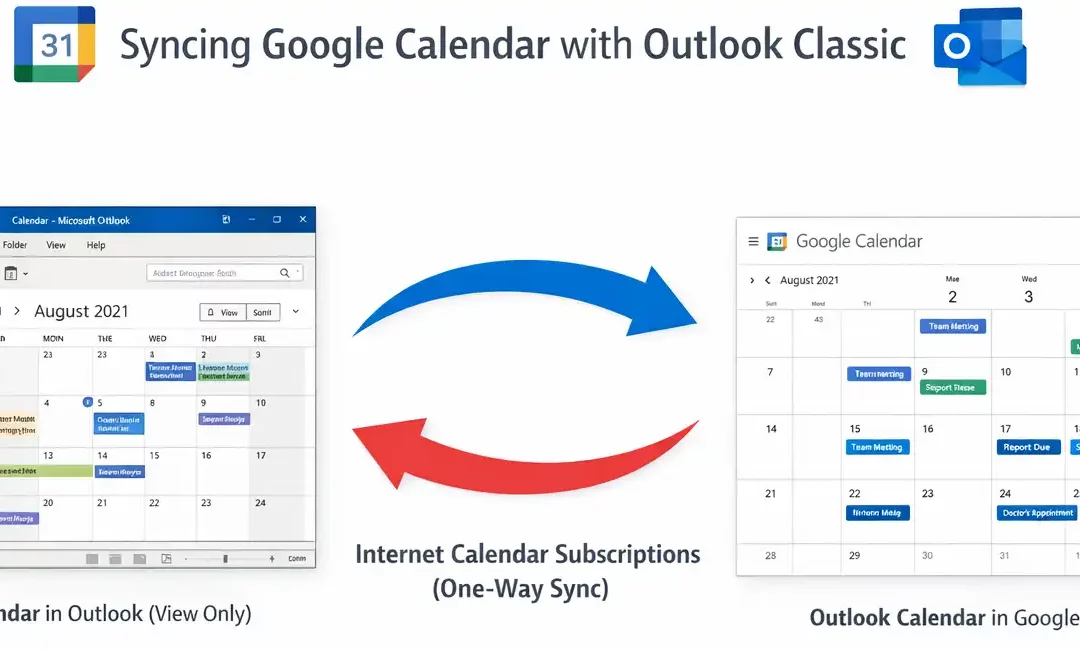
In Outlook Classic (desktop), there isn’t a built-in “true two-way” sync with a personal Gmail / Google Calendar the way people expect. What is built in is subscribe-by-link (ICS), which is view-only (events show up, but edits you make in Outlook won’t write back to Google, and vice-versa). Microsoft’s own steps for Outlook desktop describe this as adding an internet calendar subscription. Microsoft Support+1
Here are the best working options:
Option A (most common): Make them match visually (two one-way subscriptions)
1) Show Google Calendar inside Outlook Classic (view-only)
-
Open Google Calendar (web) → Settings
-
Under Settings for my calendars, click the calendar name
-
Click Integrate calendar → copy Secret address in iCal format Google Help
-
In Outlook Classic → Calendar → Home tab → Add Calendar → From Internet
-
Paste the iCal URL → OK → Yes to subscribe Microsoft Support
2) Show your Outlook/Microsoft calendar in Google Calendar (view-only)
-
Open Outlook on the web (Microsoft 365 / Outlook.com) → Settings → Calendar → Shared calendars
-
Under Publish a calendar, publish your calendar and copy the ICS link Microsoft Support+1
-
In Google Calendar (web) → Other calendars → From URL → paste the ICS link
✅ Result: each side displays the other, but it’s not instant and not editable both ways (it’s subscriptions).
Option B: True two-way sync (best if you’re on Google Workspace)
If your Google account is a Google Workspace account (work/school), use Google Workspace Sync for Microsoft Outlook (GWSMO). It’s designed to sync mail + calendar + contacts with Outlook. Google Help+1
Google also documents that calendar sync happens automatically and on a schedule (ex: every ~10 minutes / after invites). Google Help
✅ Result: real syncing behavior inside Outlook Classic.
Option C: True two-way sync (personal Gmail)
For personal Gmail, you generally need a third-party sync tool/service for real two-way updates (Outlook Classic + Google). Microsoft’s own support/community guidance commonly points to third-party options when you need more than read-only subscriptions. Microsoft Learn
(If you go this route, pick one that supports modern OAuth sign-in, and test for duplicates/timezone handling.)
Practical recommendation
-
If you just want everything to “match” when you look at it: Option A (subscriptions) is simplest and free.
-
If you need create/edit anywhere and it stays identical:
-
Google Workspace account → Option B (GWSMO)
-
Personal Gmail → Option C (third-party tool)
-
If you tell me whether your Outlook calendar is Microsoft 365/Exchange (work) or Outlook.com, and whether your Google account is Workspace or personal Gmail, I’ll point you to the exact best option for your setup.

About Glenn Brooks
Glenn Brooks is the founder of WebWize, Inc. WebWize has provided web design, development, hosting, SEO and email services since 1994. Glenn graduated from SWTSU with a degree in Commercial Art and worked in the advertising, marketing, and printing industries for 18 years before starting WebWize.