
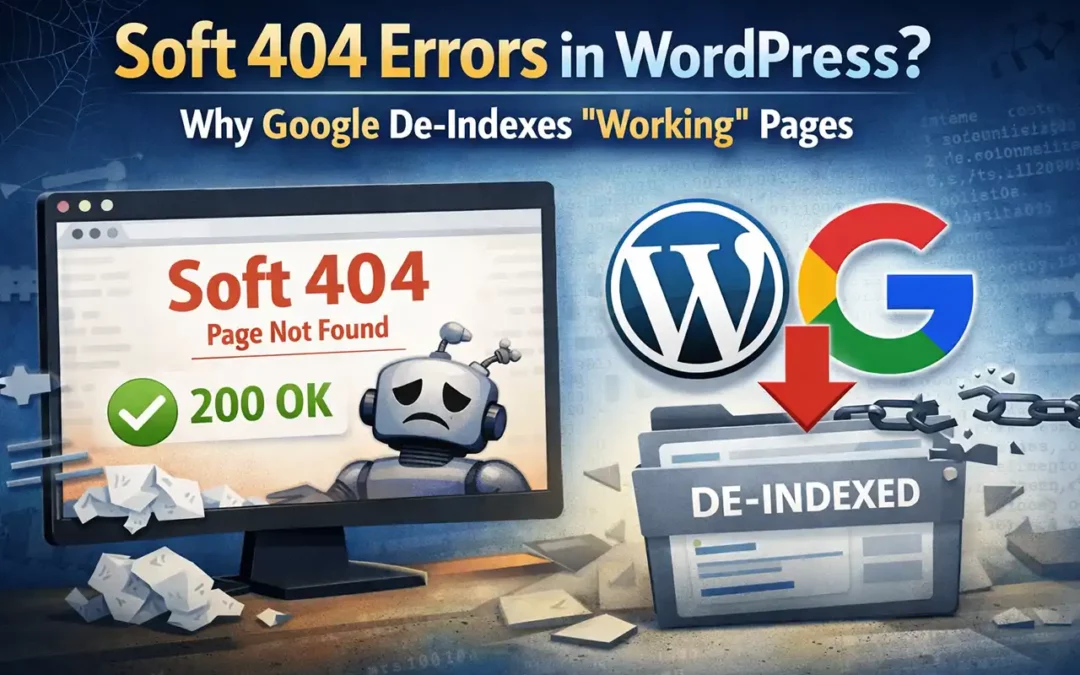
Soft 404 Errors: Why Google Flags “Working” Pages
Soft 404 errors happen when a page returns a 200 OK status code but shows missing, thin, or “not found” content.
Google wastes crawl resources analyzing these URLs, then often de-indexes them. Here’s how to fix soft 404s in WordPress using RankMath, Yoast, or AIOSEO—plus when to use proper 404/410 status codes.
TL;DR
Soft 404 errors happen when your server responds with 200 OK for pages that have thin or missing content.
Google spends crawl budget processing these misleading responses, then may de-index the URLs.
Fix them by returning proper 404/410 status codes or applying noindex (especially for empty WordPress archives)
via your SEO plugin.
Answer Summary
- Soft 404s waste crawl budget because your server says “success” while the content provides no value.
- WordPress sites get hit hardest due to empty category archives, tag pages, and author profiles.
- Fix fast: use RankMath, Yoast, or AIOSEO to noindex empty archives.
- Manual fixes: return correct 404 or 410 codes at the server/theme level when needed.
- Impact scales with size: large sites benefit most, but everyone gains crawl efficiency.
Why You’re Seeing Soft 404 Errors in Google Search Console
We’re seeing a pattern across WordPress sites: you open Google Search Console, see a notification about soft 404 errors,
and the URLs “load fine” in your browser.
Here’s the catch: soft 404 errors waste crawl budget even though your server returns a 200 OK status.
Google can detect when the page content signals “missing” or “no value,” even if the server says everything is successful.
Google’s Gary Illyes discussed this at Search Central Live Asia Pacific 2025, which changed how many SEOs think about these errors.
What’s Happening When You Get a Soft 404
Your server tells Google everything’s fine by sending a 200 OK status code (success).
But the page displays “page not found” messaging or thin content that provides little to no value.
Google crawls the page, recognizes the low-value pattern, and flags the URL as a soft 404.
The problem is the processing cost. A standard 404 Not Found doesn’t require Google to analyze content—Google sees the status, understands the page is missing, and moves on. A soft 404 forces Google to spend time evaluating a URL that shouldn’t exist.
Then comes the painful part: Google often de-indexes these pages. That can reduce overall crawl efficiency, slow indexing of new content, and clutter your Search Console with persistent “errors” that are really site quality signals.
Why WordPress Sites Get Hit Hardest
WordPress generates pages dynamically: category archives, tag archives, author pages, internal search results, and pagination. When those pages are empty—or effectively empty—they can look like “missing pages” to Google even though the templates exist.
We learned this lesson back in 2019: a client site showed 180 soft 404 errors overnight. Every single URL was an empty category archive—the page technically existed, but it had zero posts.
Common WordPress Soft 404 Triggers
- Empty category archives: categories with no assigned posts
- Empty tag archives: tags that exist but aren’t used
- Pagination beyond content: “page 5” when only 2 pages exist
- Search results with no matches: internal search pages showing “no results found”
- Author archives with no posts: user accounts that never published content
Key insight: WordPress’s dynamic page generation creates soft 404s when the template exists but the content doesn’t.
Your SEO plugin should handle these cases—otherwise you’ll keep seeing new soft 404s appear over time.
How to Fix Soft 404 Errors Using SEO Plugins
In most WordPress cases, the cleanest fix is to noindex the empty archive types so Google stops trying to index them.
Below are the common approaches for the three most-used SEO plugins.
Option 1: RankMath Users
- Go to WP Dashboard → Rank Math SEO → Titles & Meta → Global Meta.
- Find the setting for Noindex Empty Category and Tag Archives.
- Enable it, then save.
Result: Google ignores these pages instead of attempting to index them as soft 404s.
Option 2: Yoast SEO Users
- Go to Yoast Settings → Search Appearance.
- Open the Taxonomies tab.
- Set empty category/tag archives to noindex (or disable them in search where appropriate).
Yoast also lets you control author archives and date archives. If you don’t use them for navigation, noindex them.
Option 3: All In One SEO (AIOSEO) Users
- Go to All in One SEO → Search Appearance → Taxonomies.
- Toggle Show in Search Results to Off for archive types that are empty/low-value.
- Save changes.
AIOSEO will add the appropriate robots meta settings once saved.
The Manual Approach (When Plugins Don’t Cut It)
Sometimes you need more control—especially with custom post types, unusual archive structures, or theme-generated pages that plugins can’t manage. In those cases, the correct solution is returning the correct HTTP status code at the server/theme level.
Here’s what matters: both 301 redirects and 410 Gone can tell Google to stop indexing a URL. Use a 301 when content moved to a new location. Use a 410 when the content is permanently removed and won’t return.
Key insight: plugin solutions fix the majority of WordPress soft 404s. The remaining edge cases require server-level status code changes via custom development.
Understanding HTTP Status Codes (The Only Ones You Need)
You don’t need to memorize every status code. Just understand what your server is “telling” search engines.
Soft 404s happen when your server message and page reality don’t match.
The Codes Worth Knowing
- 200 OK: The page exists and loaded successfully. Use this for real content.
- 301 Moved Permanently: The page moved. Use when content has a new URL.
- 404 Not Found: The page doesn’t exist. Normal on the web; not inherently an SEO problem.
- 410 Gone: The page was intentionally removed and won’t return. Often processed faster than a 404.
- 500 Internal Server Error: Server-side failure. Needs immediate attention.
Key insight: status codes guide how search engines handle your URLs. When the code doesn’t match reality (like 200 for a missing page), you create confusion that wastes crawl resources.
When Crawl Budget Matters (And When It Doesn’t)
If you run a small site with 50 pages, crawl budget probably isn’t your biggest concern. Google will crawl everything regularly, even if a few soft 404s exist.
As your site grows past a few hundred pages, crawl efficiency starts to matter more—especially for sites that publish frequently or update products and content often. Soft 404s keep getting crawled and waste budget that could be used discovering new pages.
We saw this with an e-commerce site: thousands of products and hundreds of soft 404 errors from discontinued items returning 200 OK. After correcting the status codes, new products began appearing in search much faster.
Key insight: site size changes the stakes. Under ~200 pages, impact is usually minor. Over ~1,000 pages with frequent updates, soft 404s can directly slow down discovery and indexing.
What We’ve Learned
The technical fix is straightforward: use noindex for low-value archives, return proper 404/410 codes for removed pages,
and don’t let WordPress auto-generate indexable pages with nothing on them.
The bigger lesson: your server’s communication with search engines matters more than most people realize.
When the status code says “success” but the content says “missing,” you create an inefficiency that compounds over time.
For WordPress sites that publish regularly, eliminating soft 404s improves crawl efficiency enough to matter—especially as your site grows.
Frequently Asked Questions
What causes soft 404 errors in WordPress?
Empty archives (categories, tags, authors) trigger soft 404s because WordPress generates a page template with a 200 OK status,
but there’s no content to display. Google sees the thin content and flags it.
Do soft 404 errors hurt SEO?
Yes. They waste crawl budget and often get de-indexed. On large sites, they can slow how fast Google discovers and indexes new content.
How are soft 404s different from regular 404 errors?
Regular 404s return the correct “not found” status code and don’t waste crawl budget. Soft 404s return 200 OK while showing missing or thin content,
forcing Google to analyze a page that shouldn’t be indexed.
Which SEO plugin is best for fixing soft 404s?
RankMath, Yoast, and All In One SEO all handle this well. Use the one you already have installed—each can noindex empty archive types.
Should I use 404 or 410 for deleted pages?
Use 410 for permanently removed content (like discontinued products or deleted posts). Use 404 for pages that never existed
or might come back. Google typically processes 410s faster.
How long does it take Google to recognize fixed soft 404s?
It depends on crawl frequency. If Google crawls your site daily, changes may be visible within about a week. Smaller sites can take 2–3 weeks.
Can soft 404s affect my site’s ranking?
Indirectly, yes. They waste crawl resources, which can slow indexing of new content and contribute to overall site quality signals when they pile up.
Do I need to fix soft 404s on small websites?
It’s worth fixing, but it’s usually not urgent. On small sites (under ~200 pages), crawl budget is rarely tight. Focus on content first,
then clean up soft 404s when you can.
Key Takeaways
- Soft 404s waste crawl budget by returning 200 OK for pages that provide no value.
- WordPress is especially prone due to empty archives and dynamic templates.
- Fix most cases by noindexing empty archives via RankMath, Yoast, or AIOSEO.
- Use proper 404/410 codes (or 301 redirects when appropriate) for removed or moved content.
- The bigger your site, the more these errors slow discovery and indexing of new pages.
Need Help Cleaning Up Soft 404s?
If your website is crawling slower than a slug in winter, let’s fix the bottlenecks fast.
Call WebWize at 713-416-7111 and we’ll help Google spend its crawl budget on the pages that actually make you money.

About Glenn Brooks
Glenn Brooks is the founder of WebWize, Inc. WebWize has provided web design, development, hosting, SEO and email services since 1994. Glenn graduated from SWTSU with a degree in Commercial Art and worked in the advertising, marketing, and printing industries for 18 years before starting WebWize.